【Windows 8.1】啟用或停用鎖定畫面
2014/04/24
萌芽站長
3,312 1
作業系統 , Windows
⚠️ 溫馨提醒:我們發現您可能啟用了廣告阻擋器,請將本站加入白名單以正常閱讀文章內容,謝謝支持 ❤️
Windows 8.1的鎖定畫面較適合使用在平板,用桌機的話,這功能顯得很多餘,這裡就教大家如何啟用或停用鎖定畫面~

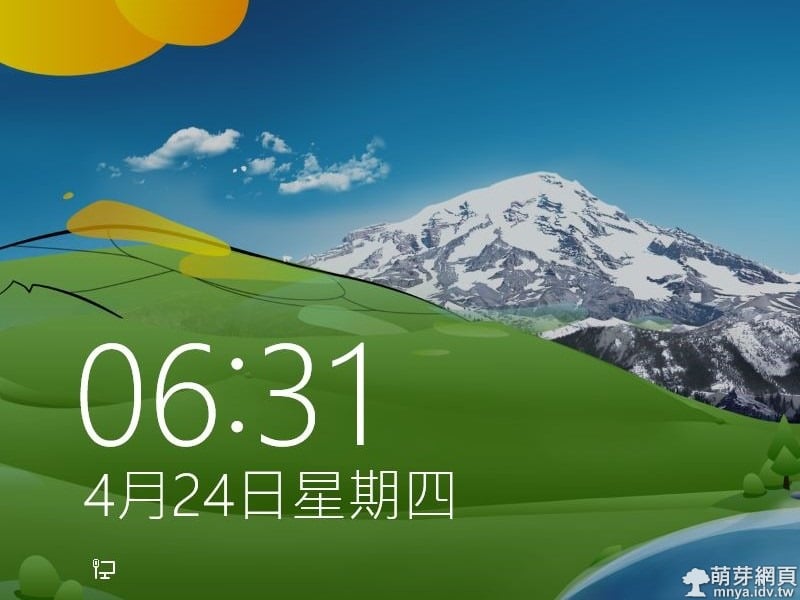
▲這就是鎖定畫面~
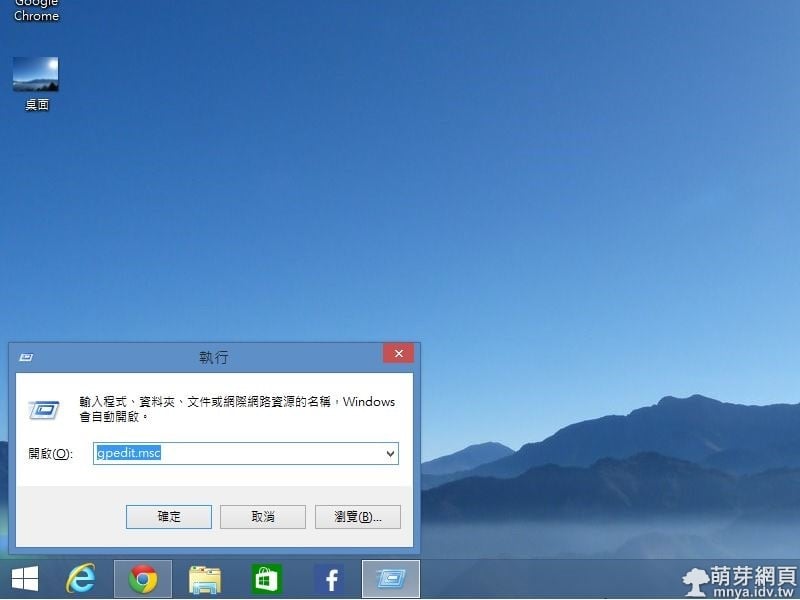
▲首先,鍵盤"Windows"+"R"開啟"執行",輸入"gpedit.msc",點"確定"。
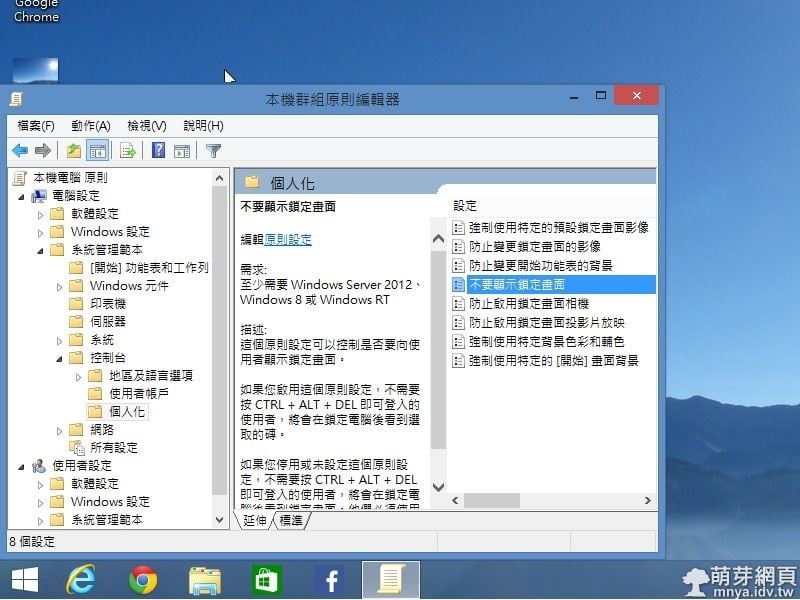
▲開啟"本機群組原則編輯器"後,請前往"電腦設定"→"系統管理範本"→"控制台"→"個人化"。
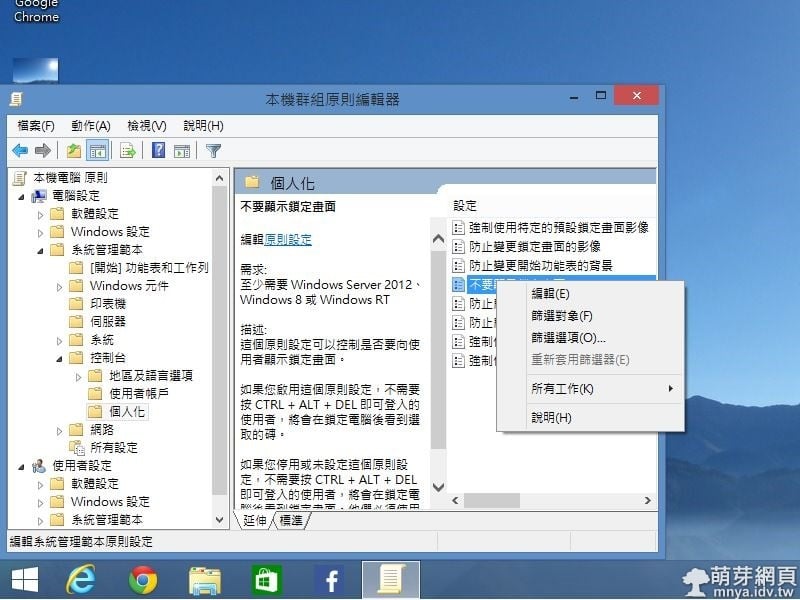
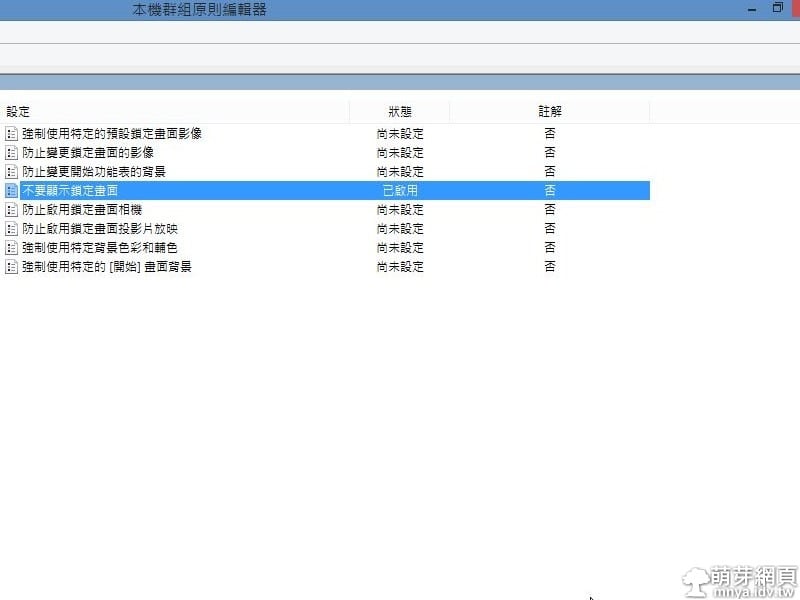
▲在"不要顯示鎖定畫面"上點滑鼠"右鍵",選"編輯"。
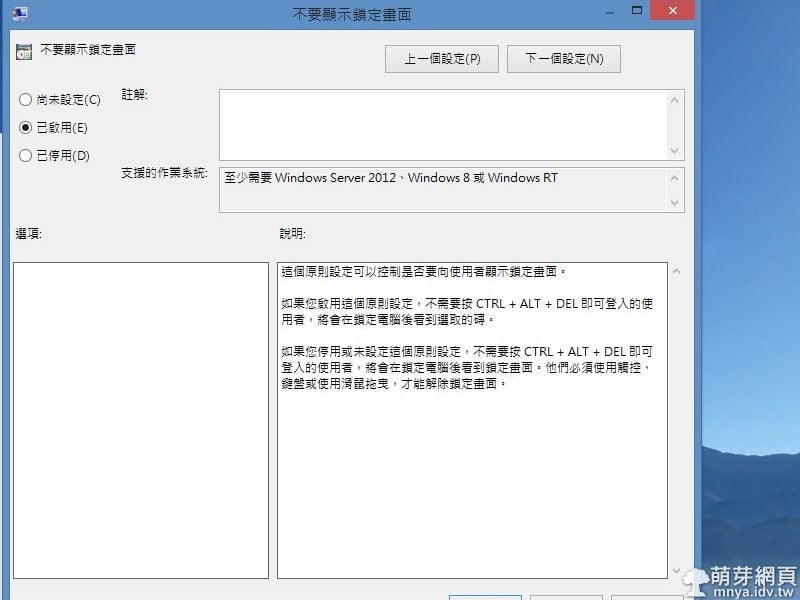
▲點"已啟用",再按"確定"。
▲確定設定成功後重新開機即可看見結果。
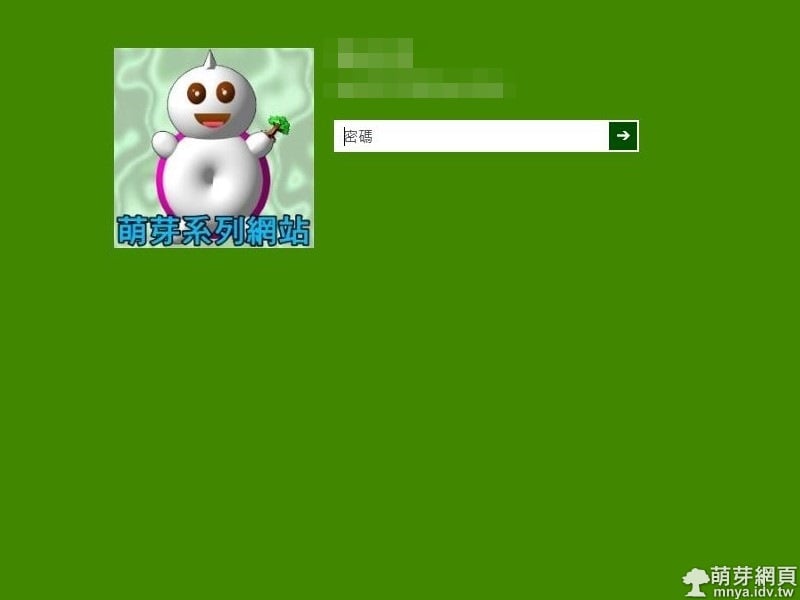
▲會直接進入登入畫面~
贊助廣告 ‧ Sponsor advertisements
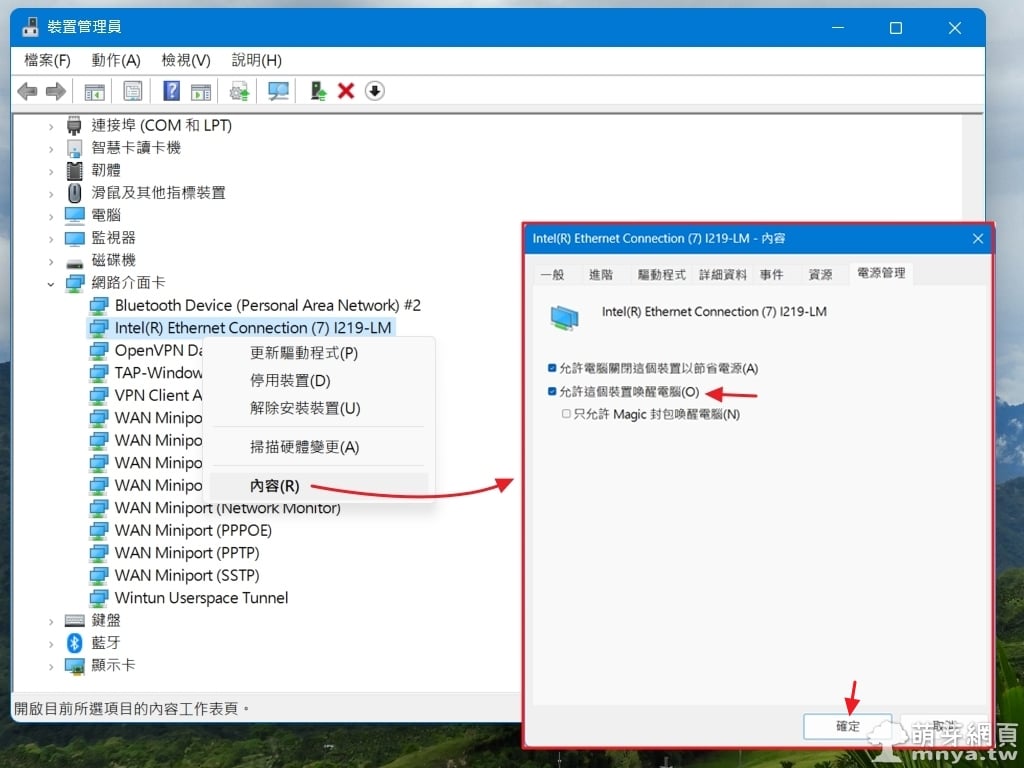
Windows 系統電腦設定網路喚醒(Wake-on-LAN)教學
📆 2024-01-02
📁
作業系統, Windows
【Ubuntu 15.10】在啟動欄加入「顯示桌面」圖示
📆 2016-04-10
📁
作業系統, Linux, Ubuntu
【Windows 10】APP開發心得
📆 2015-08-13
📁
作業系統, Windows
Windows 10 創作者更新(Creators Update)搶先體驗!
📆 2017-04-06
📁
作業系統, 資訊新聞, Windows
【Elementary OS】使用軟件中心安裝FileZilla
📆 2014-04-26
📁
作業系統
【Windows 2000】初次嘗試使用記錄
📆 2014-07-12
📁
作業系統, Windows
【Windows 10】1920x1080 解析度下調整顯示比例,不再嫌字太小!
📆 2017-01-22
📁
作業系統, Windows
【Ubuntu 14.04 LTS】左側啟動器設定教學
📆 2014-04-21
📁
作業系統, Linux, Ubuntu



留言區 / Comments
萌芽論壇